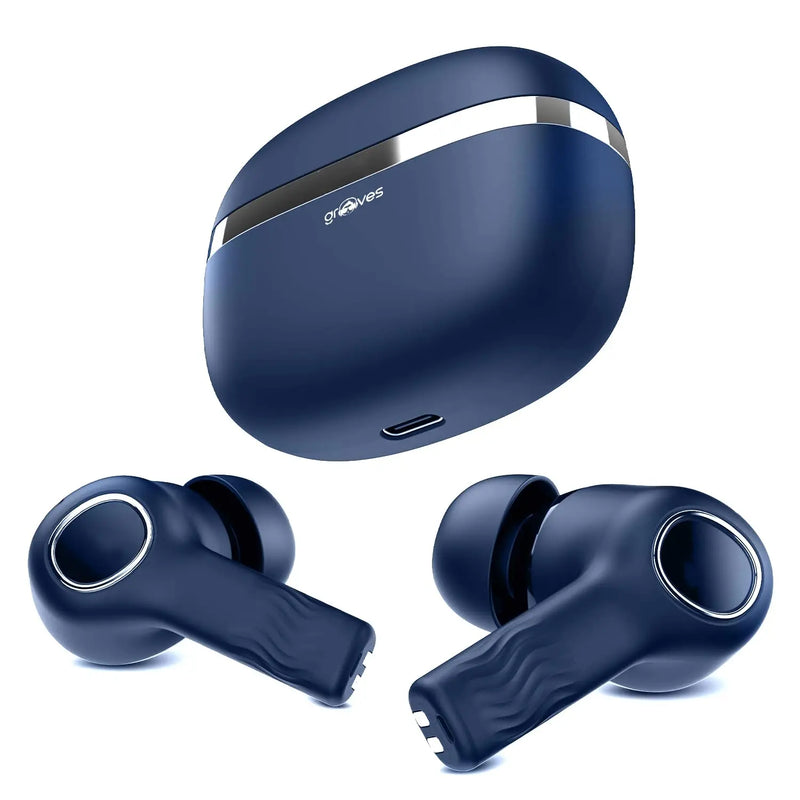
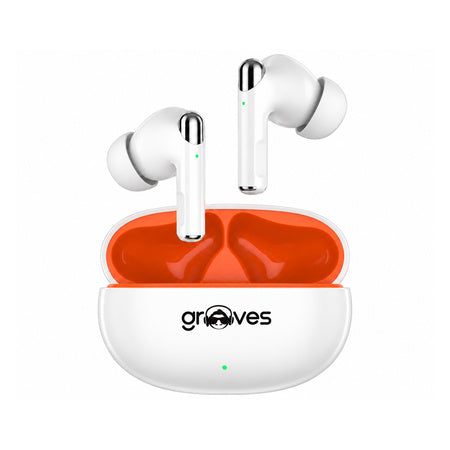
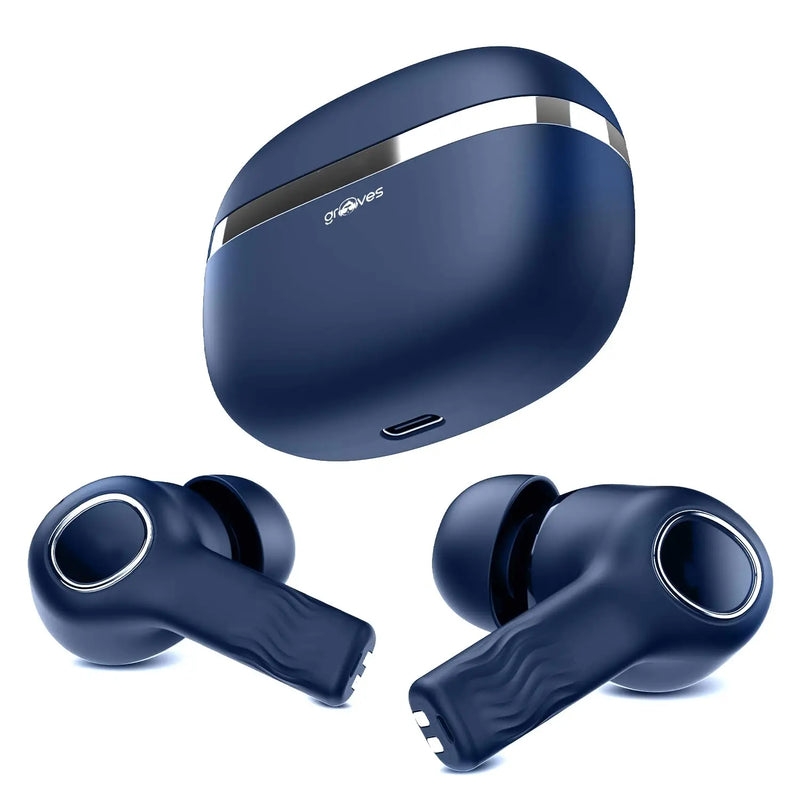
Setting up a new pair of Grooves earbuds? Start with the exact model name on the box or order confirmation, then use your phone’s Bluetooth settings to pair the earbuds. This guide covers the phone-side setup for Android and iPhone. Pairing-mode controls, indicator lights and reset sequences vary by Grooves model: follow the supplied manual for those steps.
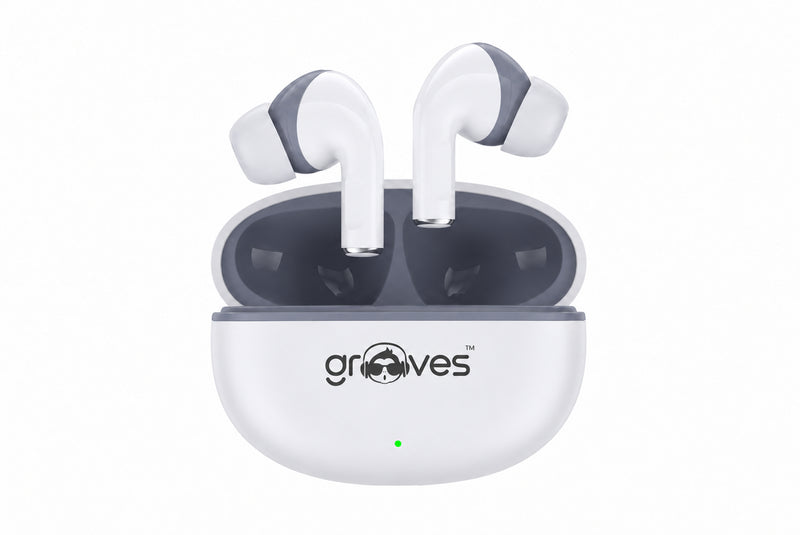
Before you start
- Charge the earbuds and case according to the product instructions.
- Keep the earbuds close to the phone during setup.
- If they are already connected to another phone or laptop, disconnect that device before trying a new pairing.
- Put the earbuds into pairing mode using the instructions for your exact model. Do not guess a long-press or reset sequence from a different product.
Connect Grooves earbuds to an Android phone
- Open your phone’s Settings and find Bluetooth, usually under Connected devices or Connections. Menu names vary by phone.
- Turn Bluetooth on and choose Pair new device or the equivalent scan option.
- With the earbuds in pairing mode, select their name from the available devices. Match it to your model rather than choosing an unfamiliar nearby accessory.
- Complete any pairing confirmation shown by the phone, then play audio at a low volume to check the connection.
A pop-up is not required for ordinary Bluetooth pairing. Features such as Fast Pair depend on the accessory and phone; do not assume a model supports them unless its documentation says so.
Connect Grooves earbuds to an iPhone
- Open Settings > Bluetooth and turn Bluetooth on.
- Put the earbuds in their documented pairing mode and keep them near the iPhone.
- Tap the accessory name when it appears in the Bluetooth device list.
- Once connected, play a short audio clip at a comfortable volume. If sound stays on the phone, check its selected audio output.
These are standard Bluetooth-accessory steps. A charging connector, product shape or similar name does not establish support for Apple-specific setup features.
If the earbuds do not appear or reconnect
Check power and pairing mode first. Confirm another nearby device has not taken the connection. Turn Bluetooth off and back on, then scan again. If an old entry remains but pairing fails, remove or forget that entry in your phone’s Bluetooth settings and repeat setup. A product reset is a separate step: use only the exact model’s manual or ask support.
If only one side works after pairing, continue with our one-earbud charging, pairing and sound checks. Avoid opening the casing or using liquids to troubleshoot.
Know what to ask support
Have your Grooves model, phone model, operating-system version and a brief description ready. Explain whether the earbuds are missing from the device list, connect without sound, or disconnect after connecting. Do not post your full invoice or personal address in public comments.
Contact Grooves for model-specific setup help, or compare the Grooves earbuds collection and ANC and ENC buying guide if you are still choosing a product.
Phone setup references
Phone-side guidance is based on Google’s Android Bluetooth setup instructions and Apple’s third-party Bluetooth accessory instructions. These sources explain phone settings; they do not verify the features or reset controls of a particular Grooves model.